
Desking & deal workspace
Price the deal, estimate the payment, hand it on.
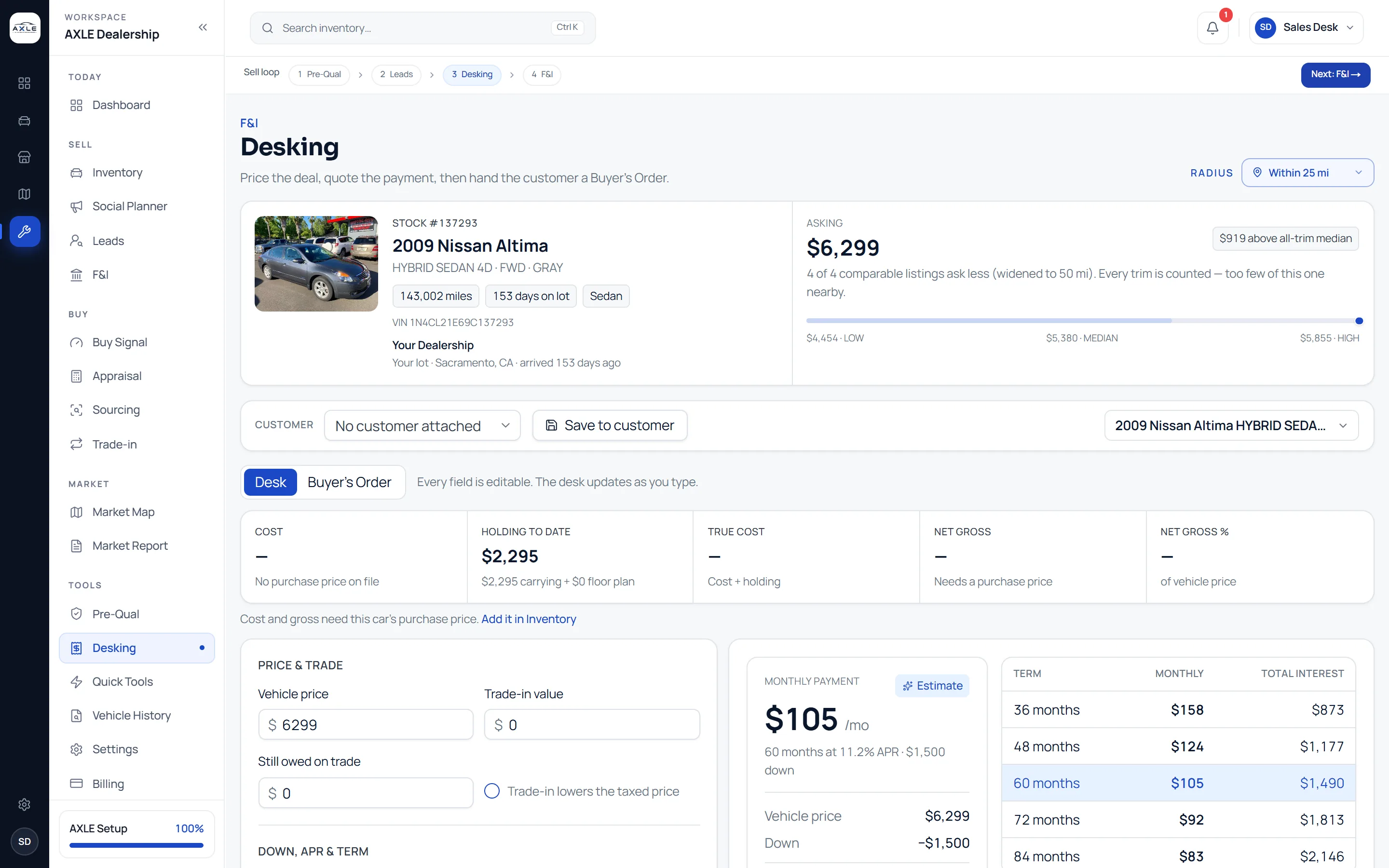
Desking in AXLE puts the car’s market position, its cost and the deal structure on one screen. Every field is editable and the payment estimate updates as you type, across every term at once.
A payment quoted without the car’s numbers is a guess.
Desking often happens in a calculator that knows nothing about the car: not what it cost, not how long it has been on the lot, not how its price compares with the market. The payment gets quoted, the gross gets worked out later, and the deal that looked good at the desk looks different at the end of the month.
AXLE desks the deal with the car’s figures already loaded. The asking against the local median, the cost to date and the gross sit beside the payment, so the structure of the deal and its effect on the store are visible before the number is given to the buyer.
Desking & deal workspace: what it gives your team.
The car’s market position
The asking price, the local median and the comparison set behind it are shown above the deal.
Cost and gross
Holding cost to date, true cost and net gross update as the price moves, once the car’s purchase price is on file.
Price and trade
Vehicle price, trade-in value, amount still owed on the trade and whether the trade reduces the taxed price where your state allows it.
Down, credit range and term
Choose a credit range and see the estimate at your starting rate for it, with every term from 36 to 84 months side by side.
Buyer’s order
Turn the desk into a buyer’s order for the customer once the structure is agreed.
Save to the customer
Attach the deal to a lead so the price and estimated payment follow the customer into Leads.
From question to next step.
- 01
Open the car
Start from a lead, the inventory list or the car’s page and the vehicle is already selected.
- 02
Structure the deal
Enter price, trade, payoff and down payment. The estimate and the gross update as you type.
- 03
Compare terms
Read the monthly payment and total interest for each term at the chosen credit range.
- 04
Hand it on
Save the deal to the customer or produce the buyer’s order.
Built for the people who run the lot.
Desk managers
Structure the deal with the car’s cost and market position in view.
Sales staff
Give a buyer a payment estimate in seconds, at the terms they ask about.
Owners
See the gross on a deal before it is agreed, not at the end of the month.
Desking & deal workspace: common questions.
Estimate only. Payments are illustrations based on the figures entered and the dealer's starting rate for the selected credit range. They exclude tax, title, licence and fees unless shown. This is not an offer or approval of credit and not a credit application. No credit check was run. Final terms are set by the lender and disclosed in writing before you sign. Axle is not a lender.
Where do the rates come from?
From the starting rate you set for each credit range in Settings. You can change them at any time.
Does desking run a credit check?
No. AXLE never runs credit inquiries. The estimate uses the credit range you choose.
Can I include a trade-in?
Yes. Enter its value and any payoff; you can also choose whether the trade lowers the taxed price.
Why is net gross blank?
Net gross needs the car’s purchase price. Add it in Inventory and the desk calculates it.
Works with
Solutions that use it
Your next step